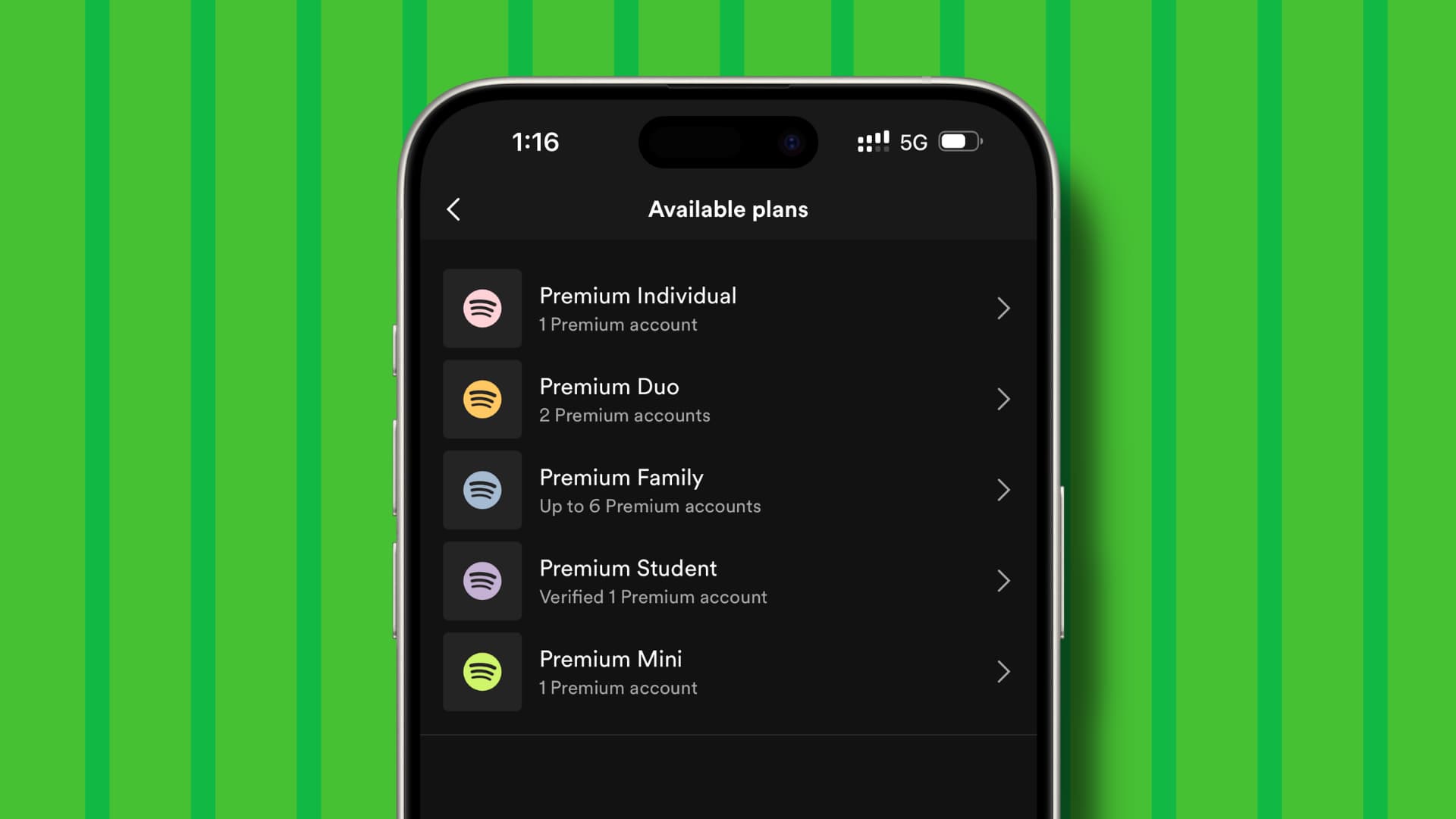
Spotify Premium is a popular music streaming service that offers ad-free music, offline listening, and higher sound quality. Many people enjoy these features, but sometimes users want to cancel Spotify Premium for different reasons. This guide will explain how to cancel Spotify Premium step by step and answer common questions about the process.
Why You Might Want to Cancel Spotify Premium
There are several reasons people choose to cancel Spotify Premium. Some find the free version enough for their needs, while others may want to save money. Sometimes, users switch to another music streaming service or no longer use Spotify as much. Whatever the reason, canceling Spotify Premium is simple and can be done from your computer, phone, or tablet.
How to Cancel Spotify Premium on a Computer
If you want to cancel Spotify Premium using your computer, follow these steps:
- Open your web browser and go to the Spotify website.
- Log in to your Spotify account using your username and password.
- Click on your profile picture in the top-right corner and select “Account.”
- In the Account Overview, find the section called “Your plan.”
- Click on “Change Plan.”
- Scroll down to the Free section and click “Cancel Premium.”
- Follow the prompts to confirm your cancellation.
After completing these steps, your Spotify Premium subscription will be canceled at the end of your current billing period. You can still use Spotify Free immediately.
How to Cancel Spotify Premium on Mobile Devices
Canceling Spotify Premium on a phone or tablet is similar to using a computer. Here is how:
- Open the Spotify app on your device.
- Tap the “Home” tab at the bottom of the screen.
- Tap the gear icon in the top-right corner to open settings.
- Select “Account.” This will open your account page in a web browser.
- Tap “Your Plan,” then select “Change Plan.”
- Scroll down to the Free plan and tap “Cancel Premium.”
- Confirm your choice to cancel the subscription.
Note that if you subscribed through the App Store or Google Play, you might need to cancel through those services instead of directly in the Spotify app.
What Happens After You Cancel Spotify Premium
After canceling Spotify Premium, your account will automatically revert to the free version at the end of your current billing cycle. You will lose premium benefits like:
- Ad-free music
- Offline listening
- Unlimited skips
- High-quality audio
However, all your playlists, saved songs, and followers will remain intact. You can always upgrade to Premium again later if you decide to return.
Cancelling Spotify Premium Through Third-Party Services
Some users subscribe to Spotify Premium through services like Apple, Google Play, or mobile carriers. If this is the case, you cannot cancel directly through Spotify. Instead, follow these instructions:
- Apple App Store: Open the Settings app, tap your name, go to Subscriptions, find Spotify, and tap “Cancel Subscription.”
- Google Play Store: Open the Play Store, tap your profile picture, go to Payments & Subscriptions > Subscriptions, select Spotify, and tap “Cancel Subscription.”
- Mobile carriers: Contact your carrier’s customer service for instructions on canceling Spotify Premium.
Always check how you subscribed to avoid any confusion when canceling.
Can You Get a Refund After Canceling Spotify Premium
Spotify generally does not provide refunds for partial months. Your subscription will remain active until the end of the current billing cycle. For example, if your billing cycle ends on the 15th of the month and you cancel on the 5th, you can still enjoy Premium features until the 15th.
Tips for Managing Your Spotify Subscription
To make sure you do not pay for Spotify Premium by mistake, follow these tips:
- Set a reminder to check your subscription before renewal.
- Review your account regularly to ensure it is set to the plan you want.
- Keep track of subscriptions made through third-party services.
- Remember that canceling does not delete your account. You can log in anytime and enjoy Spotify Free.
Upgrading Back to Spotify Premium
If you cancel Spotify Premium and later decide to return, upgrading is easy. Log in to your account, go to the “Your Plan” section, and choose the Premium plan you want. You can pick a monthly plan, student plan, or family plan depending on your needs.
Common Issues When Canceling Spotify Premium
Sometimes users face problems while canceling Spotify Premium. Here are common issues and solutions:
- Cannot find Cancel button: Make sure you are logged in on the web browser, not just the app.
- Subscribed through Apple or Google: Cancel through the respective store, not Spotify.
- Account still charged: Contact Spotify support with billing information for help.
Spotify customer service is responsive and can help resolve any problems you encounter.
Advantages of Switching to Spotify Free
If you cancel Spotify Premium, you will switch to the free version. While it has ads and some limitations, it still offers:
- Access to millions of songs
- Ability to create playlists
- Discover new music through playlists and recommendations
Many users find Spotify Free enough if they are willing to listen to occasional ads.
Can You Pause Spotify Premium Instead of Canceling
Spotify does not currently offer a pause option. Canceling is the only way to stop paying while keeping your account. However, you can always re-subscribe later without losing your playlists and favorites.
How Long Does It Take to Cancel Spotify Premium
The cancellation process is immediate, but the subscription will remain active until the end of your billing cycle. You will not lose Premium benefits instantly; you can still enjoy them until the paid period ends.
How to Confirm Your Spotify Premium Cancellation
After canceling, you should receive an email from Spotify confirming the cancellation. You can also check your account:
- Log in to Spotify on a web browser.
- Go to Account > Your Plan.
- It should show “Spotify Free” with the date your Premium will end.
This ensures your cancellation was successful.
Conclusion
Canceling Spotify Premium can be helpful for budgeting and exploring other music services. You still keep your account, playlists, and library, so it is not a permanent loss. It can also encourage using free music options available online or trying new apps.
Frequently Asked Questions
Can I cancel Spotify Premium anytime?
Yes, you can cancel anytime. You will still have Premium access until the end of your billing cycle.
Will I lose my playlists after canceling?
No, your playlists, saved songs, and followers remain intact. You can continue using them with Spotify Free.
Do I need to cancel if I stop using Spotify?
Yes, to avoid automatic charges, you must cancel your Premium subscription.
Can I get a refund if I cancel early?
Spotify does not offer refunds for partial months. You keep Premium benefits until the billing period ends.
How do I cancel if I subscribed through Apple or Google Play?
You must cancel through the App Store or Google Play subscriptions settings. Spotify cannot cancel these directly.
Can I switch to a different Premium plan instead of canceling?
Yes, you can change plans at any time, such as moving from an individual plan to a family plan.